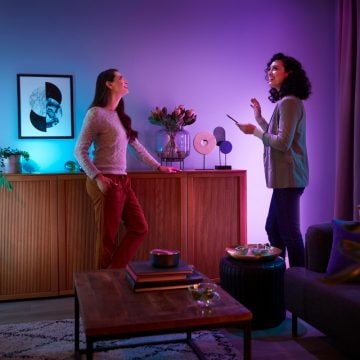
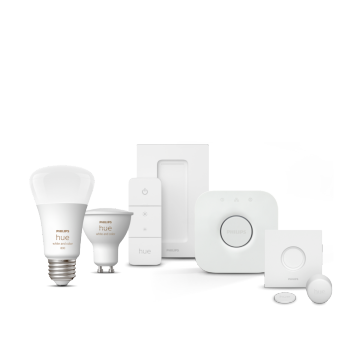
當您將 Hue 燈連接到 Google 助理時,您可以進行語音控制 — 並可將住家中的所有智慧型裝置全部連接在一起。


如何使用 Google Home 設定 Philips Hue
您需要做哪些準備
準備好所有 Google Home 和 Philips Hue 裝置以進行設定。
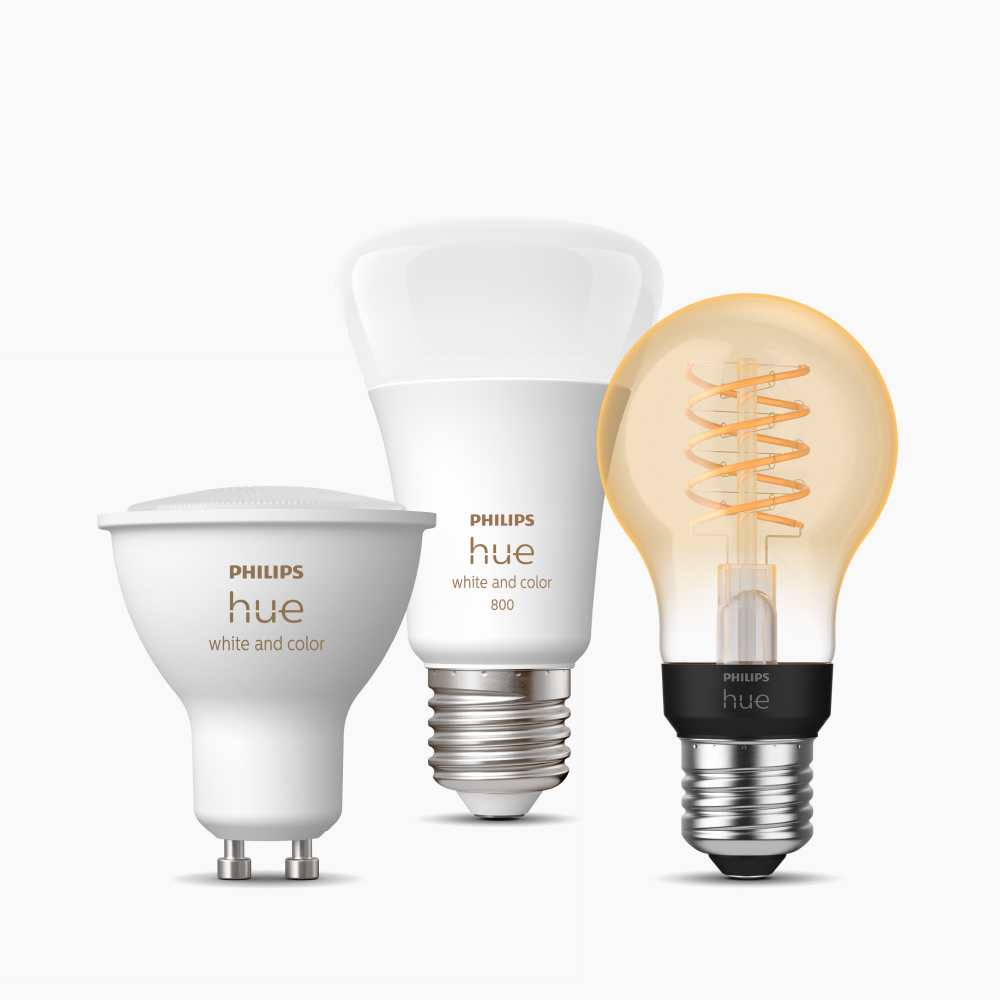
Philips Hue 燈
無論您使用的是燈泡、燈具,或上述全部裝置,您的 Philips Hue 燈均相容於 Google Home。
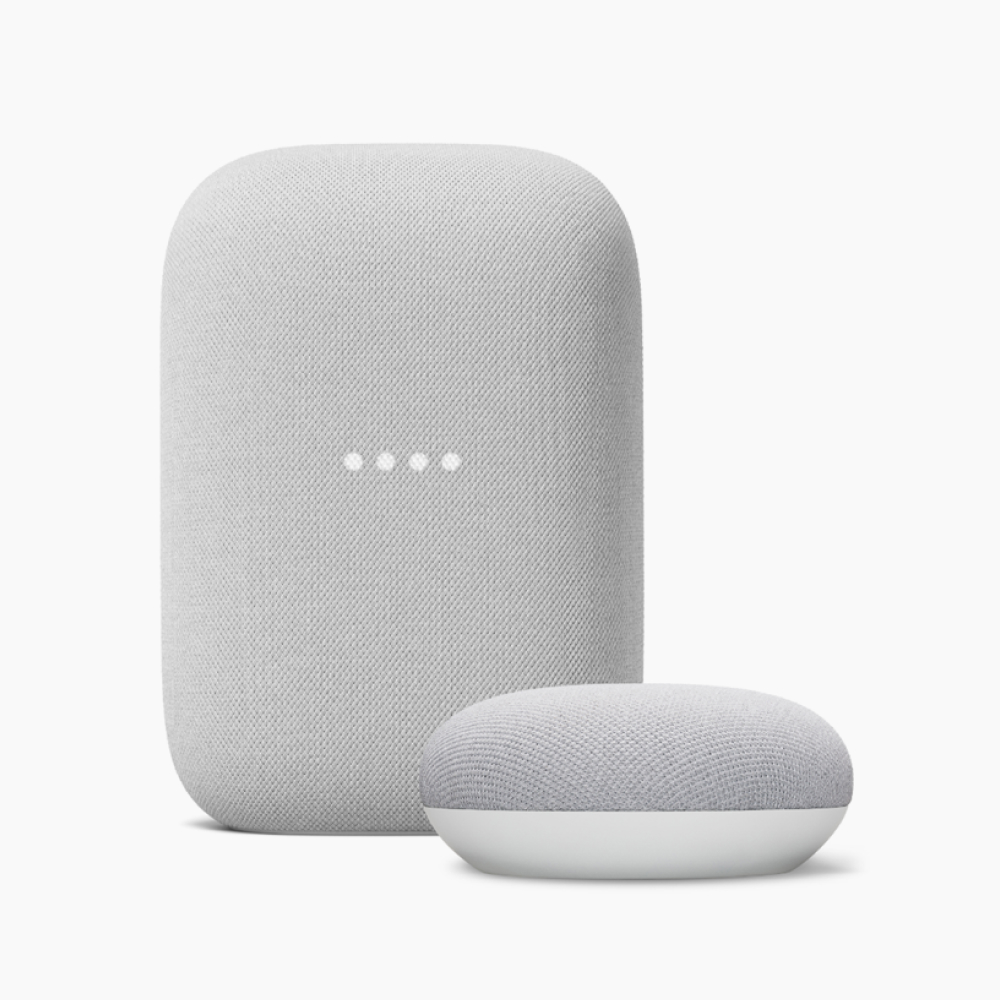
採用 Google 助理功能的裝置
從一系列支援 Google 助理的 Google 產品中進行選擇 — 或直接使用您的行動裝置!
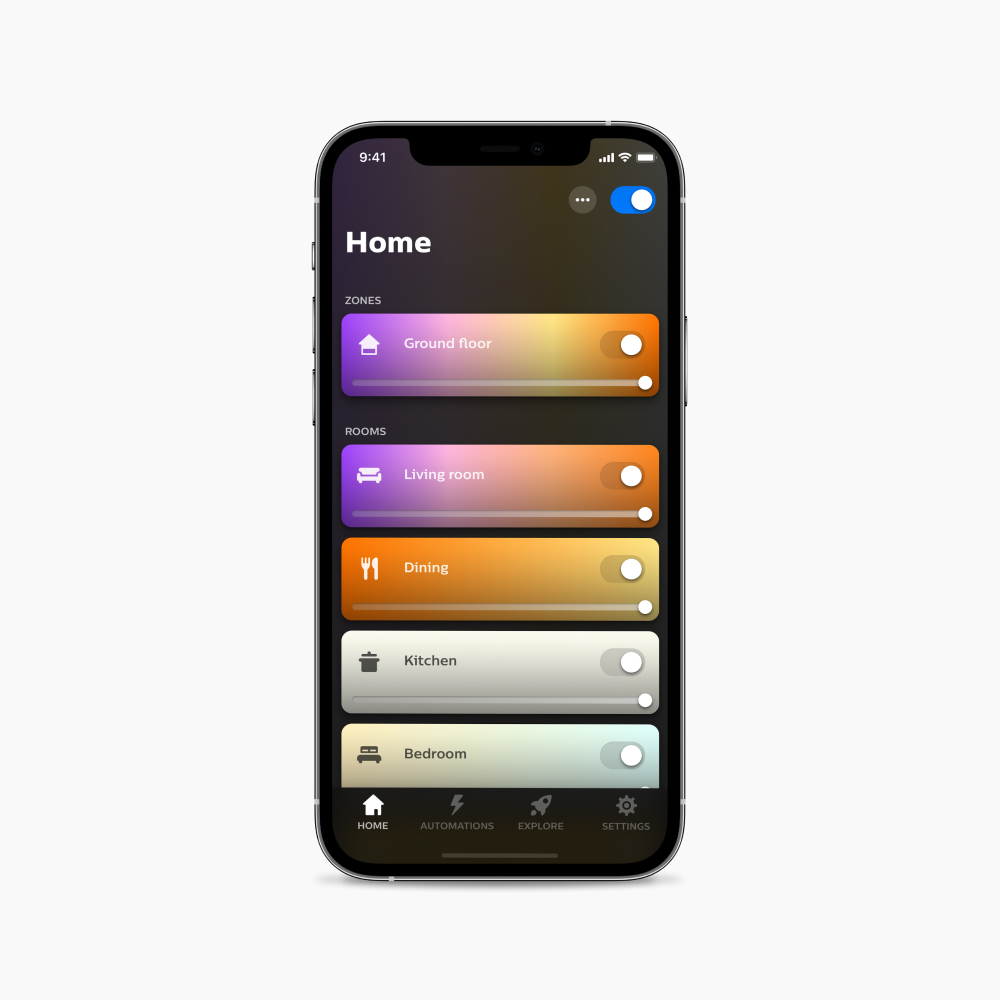
Google Home 應用程式
將 Google Home 應用程式下載到您的行動裝置上。
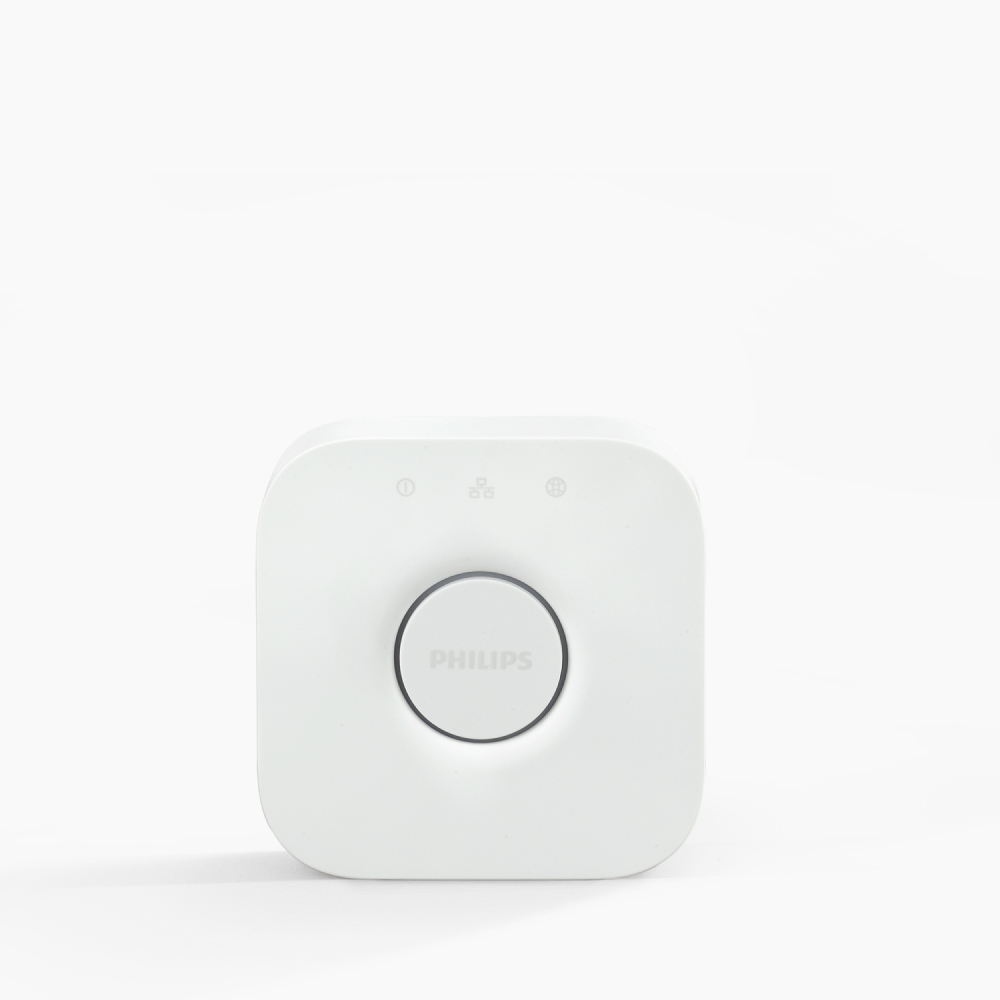
Hue Bridge (完整功能)
儘管您可以透過藍牙將 Philips Hue 連接到 Google Home,Hue Bridge 還能發揮更多功能,包括 Matter 適用支援。
使用 Hue 橋接器設定
- 開啟 Google Home 應用程式。
- 點選左上角的加號圖示 (+)。
- 點選「設定裝置」。
- 點選「與 Google 搭配運作」。
- 在下一個畫面中,從清單中選取「Philips Hue」。您可以捲動查找或在畫面頂端的搜尋列中輸入「Philips Hue」。
- 您將會被重新導向至 Philips Hue 帳戶頁面。點選「是」,即授權允許 Google Home 應用程式控制您的 Hue 燈具。此應用程式會將 Philips Hue 與 Google 助理連結。
- 點選返回箭頭圖示,即可回到 Google Home 應用程式主畫面。這時將會列出您所有的 Philips Hue 燈具和房間。
直接說「OK Google...」
完成將 Philips Hue 連接到 Google Home 之後,您就可以開始使用語音控制燈光!
「開燈。」
「把廚房的燈關了。」
「把床頭燈的燈打開。」”
「把臥室燈光調成藍色。」
「把客廳燈光調成春天花開氛圍。」
「將燈光調暗至 60%」。
問題與解答
我可以使用哪些具備 Google 助理功能的裝置來控制我的 Philips Hue 燈?
我可以使用哪些具備 Google 助理功能的裝置來控制我的 Philips Hue 燈?
為什麼我的 Philips Hue 燈未出現在 Google Home app 中?
為什麼我的 Philips Hue 燈未出現在 Google Home app 中?
如果我無法透過 Google 的「順暢設定」程序將我的 Philips Hue 燈泡與我的 Google 助理連線,該怎麼辦?
如果我無法透過 Google 的「順暢設定」程序將我的 Philips Hue 燈泡與我的 Google 助理連線,該怎麼辦?
透過 Hue 應用程式中的 Matter 連接 Google Home 有哪些好處?
透過 Hue 應用程式中的 Matter 連接 Google Home 有哪些好處?
我該如何透過 Hue 應用程式中的 Matter 連接 Google Home?
我該如何透過 Hue 應用程式中的 Matter 連接 Google Home?
經由 Matter 可支援哪些 Google Home 功能?
經由 Matter 可支援哪些 Google Home 功能?
如果我在 Google Home 整合時啟用 Matter,我的目前設定內容是否會遺失?
如果我在 Google Home 整合時啟用 Matter,我的目前設定內容是否會遺失?
是否所有的 Google Home 和 Google Nest 裝置都支援 Matter?
是否所有的 Google Home 和 Google Nest 裝置都支援 Matter?